

Headless Setup of a Java Project with Tomcat, IntelliJ Community Edition and Tomcat Maven Plugin
Use IntelliJ Community Edition, Tomcat and Tomcat Maven Plugin.
Join the DZone community and get the full member experience.
Join For FreeIntelliJ is a powerful IDE for Java developers. It has an ultimate edition and community edition. The ultimate edition provides all features that any developer can expect from IDEs of these days thus it is not free.
We also have community edition which is more than sufficient for most of real life Java projects. In this tutorial I will give a walk through of typical steps to setup web-based Java project with Tomcat.
I will use following versions:
1 IntelliJ 14 Community Edition (Free version)
2 JDK 8
3 I setup this on my mac OS X Yosemite (10.10.1)
When we install IntelliJ 14 Community Edition, it needs JDK6 JRE to start so you can install it. This is bit annoying but it is not stopping us to leverage Java 8 features in our real Java project.
Now in maven pom.xml, add following
<build>
<plugins>
<plugin>
<groupId>org.apache.tomcat.maven</groupId>
<artifactId>tomcat7-maven-plugin</artifactId>
<version>2.2</version>
<configuration>
<path>myProject</path>
</configuration>
</plugin>
</plugins>
</build>
Make sure that we do not have jsp-api, el-api or jboss-el dependencies in our pom file as tomcat has these libraries already in its /lib directory.
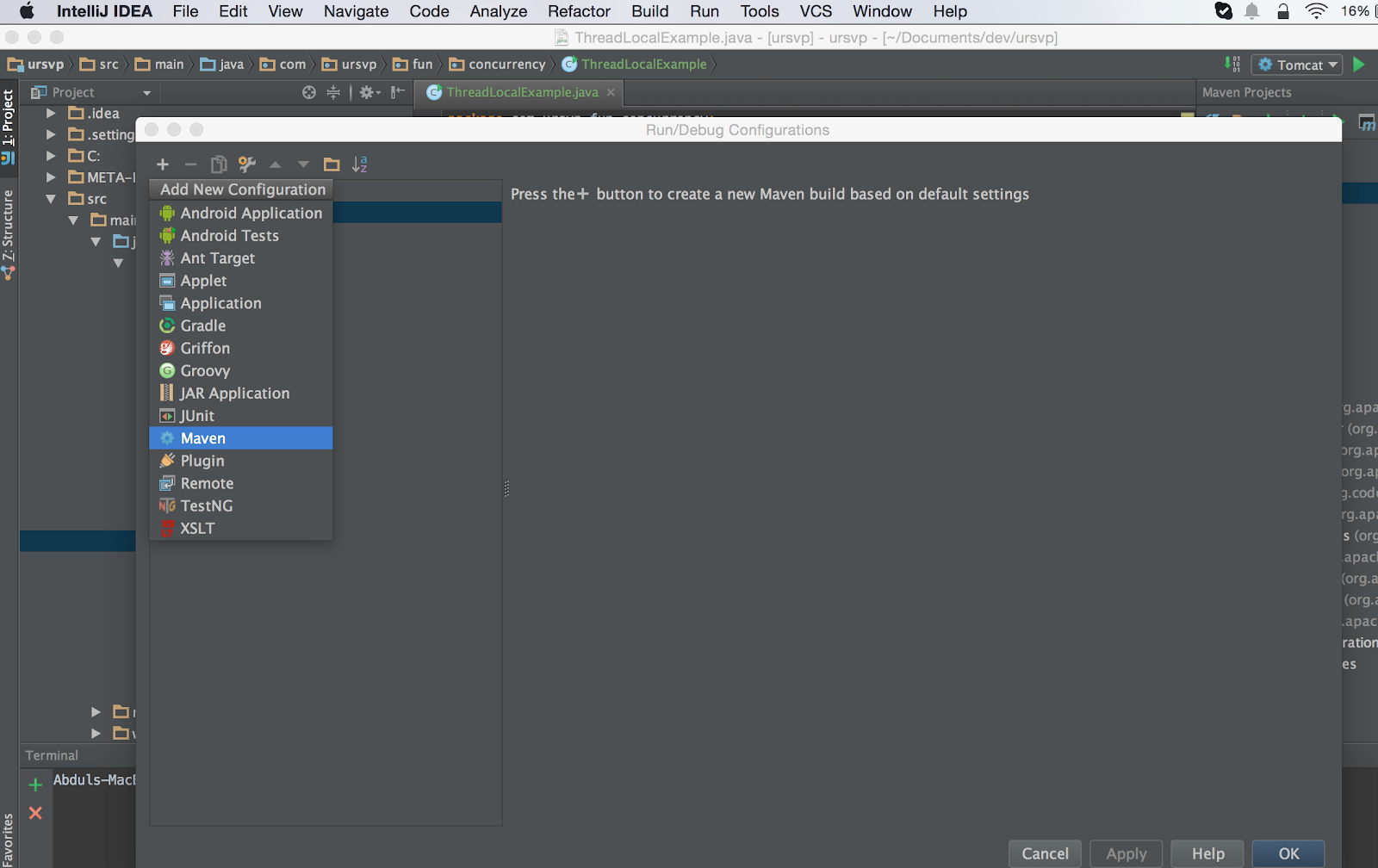
Go to “Run” menu and click “Edit Configurations…”, click “+” icon at the top left and select “Maven” as depicted in the following diagram.
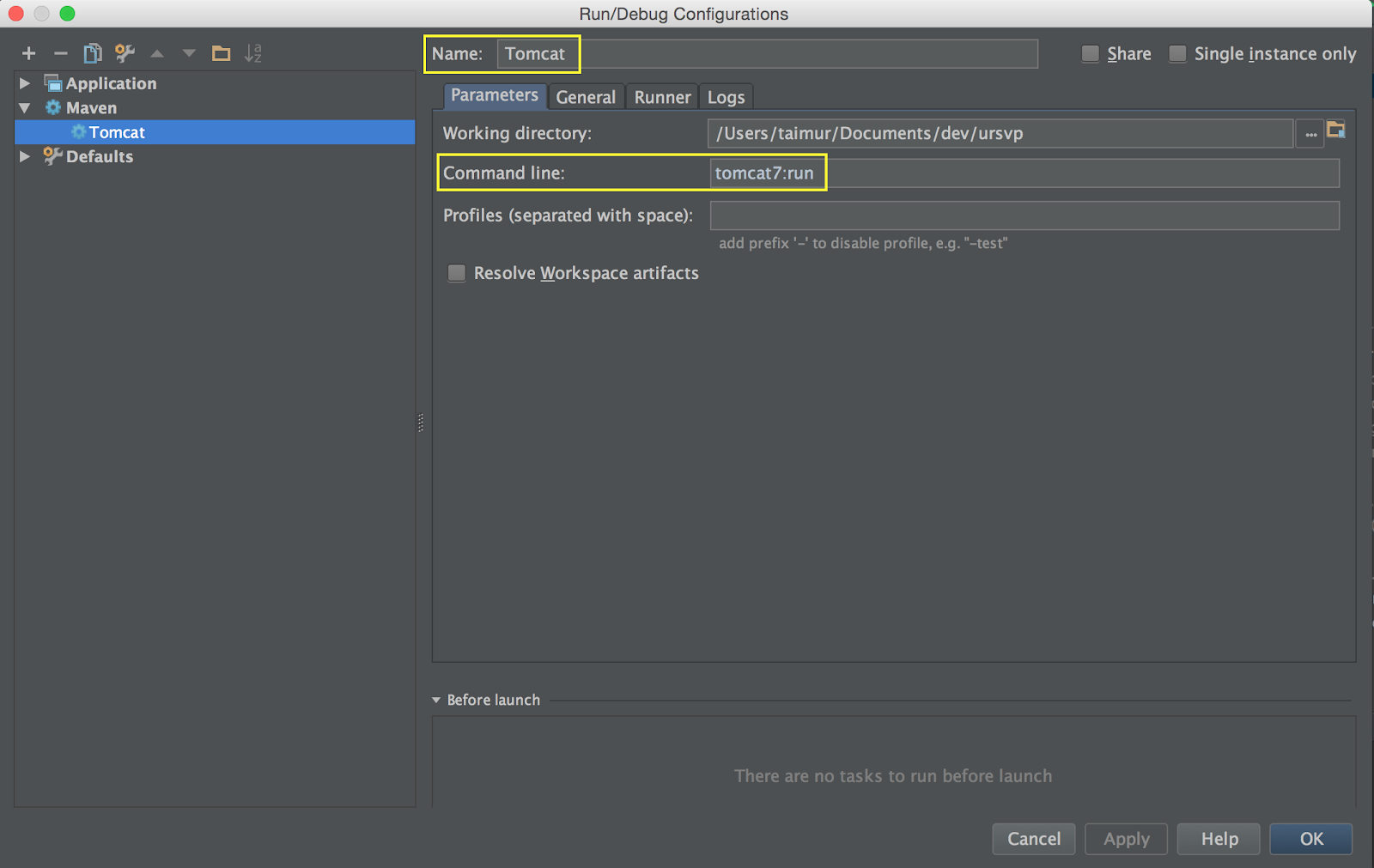
Now in the first “Parameter” tab enter “Tomcat” in the name field to recognize these settings. In the “Command Line” enter “tomcat7:run” as depicted in the following diagram.
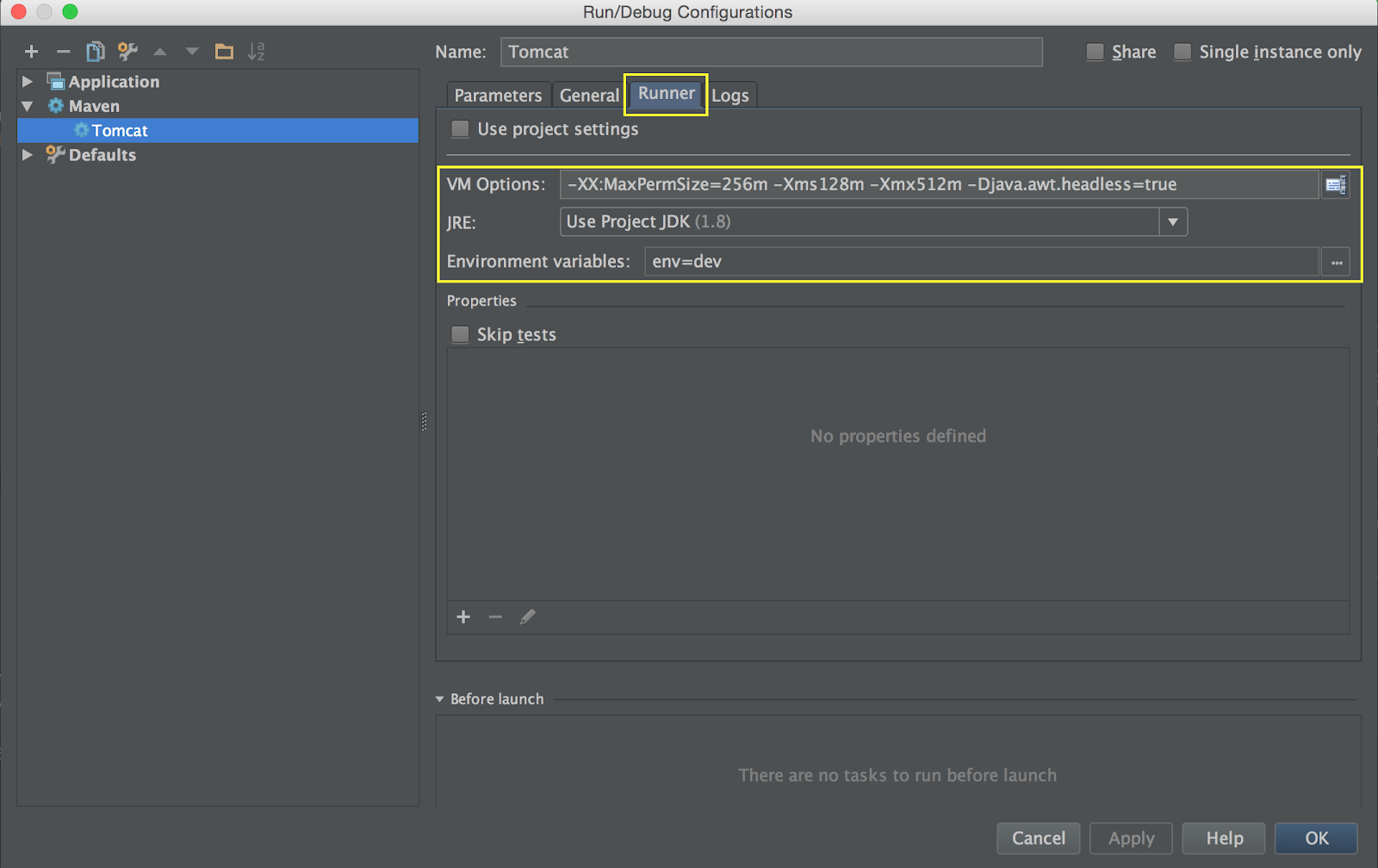
Click “Runner” tab and provide appropriate VM options as per your need and select appropriate JRE. I chose JDK 8 and provided environment variables (optional) required for my project as depicted in the following diagram.
Click “OK”. Now click “Maven Projects” from right pane as shown in the following diagram and select tomcat7 from plugins and click reimport icon to update everything.
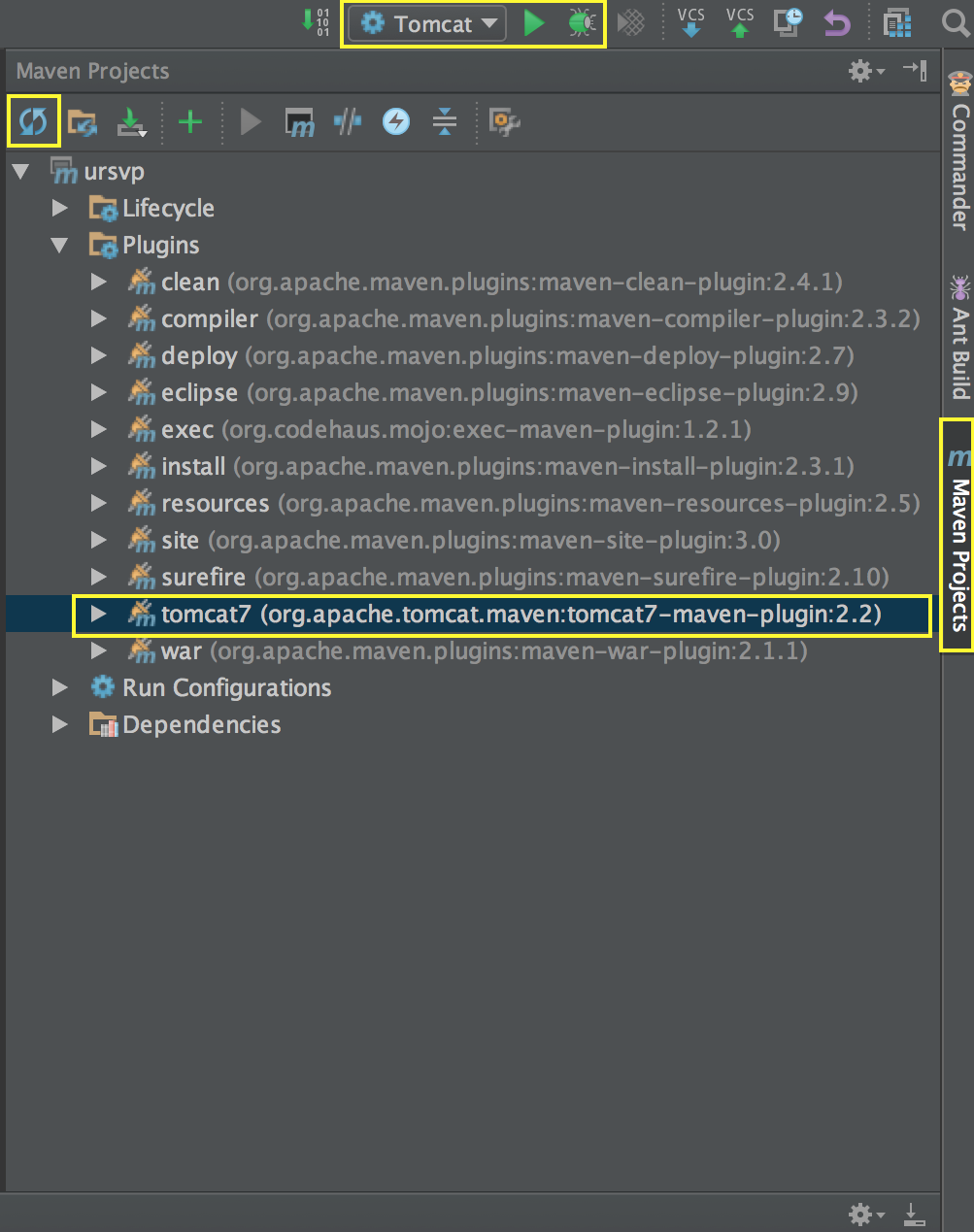
Finally click green “Run” button to start tomcat and access your app using http://localhost:8080/myProject.
Enjoy development with pleasure!
Opinions expressed by DZone contributors are their own.
Comments